Connect DeepSeek Harness to Flex AI
DeepSeek Harness (dsh) is an open-source agent harness developed by DeepSeek AI. Its local Web UI provides session and workspace management, agent presets, plugins and custom model providers. Flex AI (Flex247) can be connected through the OpenAI Responses protocol.
Developer preview
DeepSeek Harness is still a developer preview. Later releases may change its interface, configuration fields or behavior. The screenshots and steps on this page reflect the current version.
Do not expose it to the public Internet
Do not publish DeepSeek Harness through public port forwarding, an open reverse proxy or a public bind address. It may have access to API keys, session content, code and local tool permissions.
Keep the default service on 127.0.0.1:3080. For access from another device, use Tailscale or a similar trusted private-network solution and allow only your own trusted devices.
1. Install and start DeepSeek Harness
Install Node.js, then run the command provided by the project:
npx @deepseek-ai/dsh webOpen the local Web UI at:
Keep the terminal that runs this command open. If the page is unavailable, confirm that the command is still running and port 3080 is not already in use.
2. Create a dedicated Flex247 key
Sign in to Flex247, open API Keys, and create a key dedicated to DeepSeek Harness, such as DeepSeek-Harness-Windows.
Protect the key
An API key grants access to your account usage. Never place a real key in screenshots, public documentation, chats or source repositories. The API-key field is intentionally blank in this guide's screenshot.
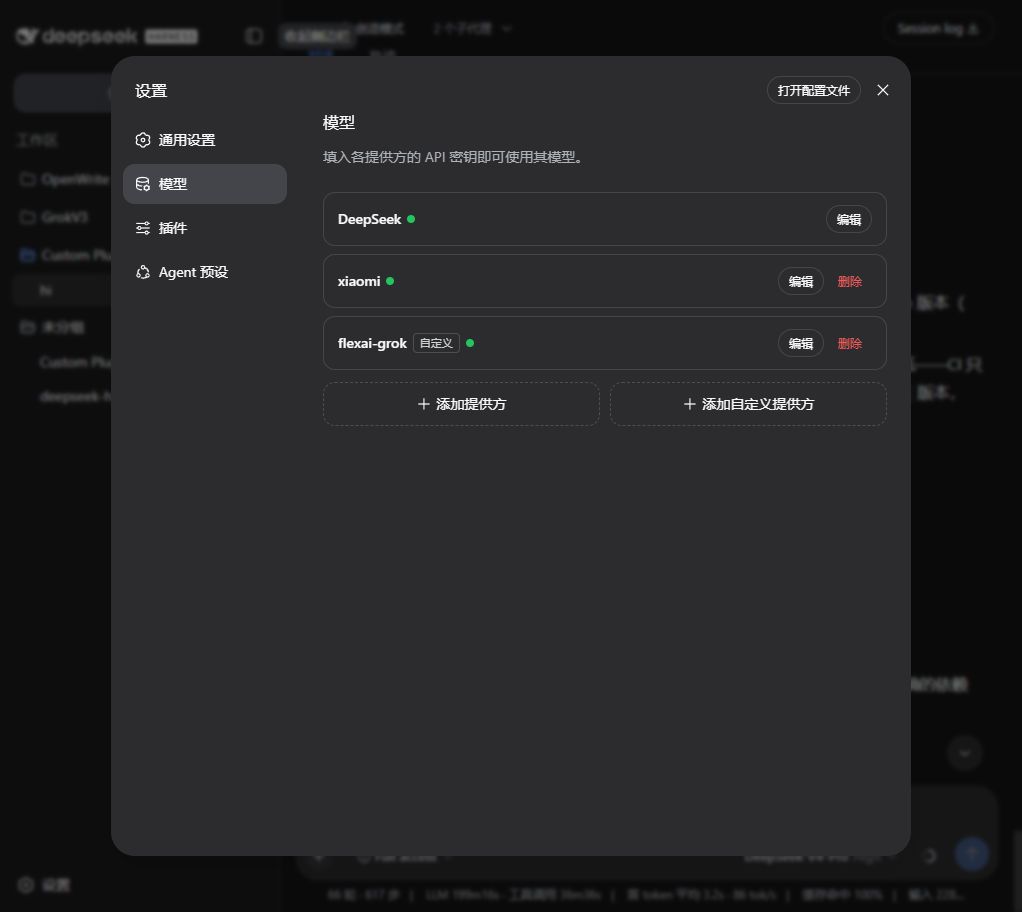
3. Open Add Custom Provider
In DeepSeek Harness:
- Click Settings in the lower-left corner.
- Open Models.
- Click Add Custom Provider.
4. Enter the Flex AI provider
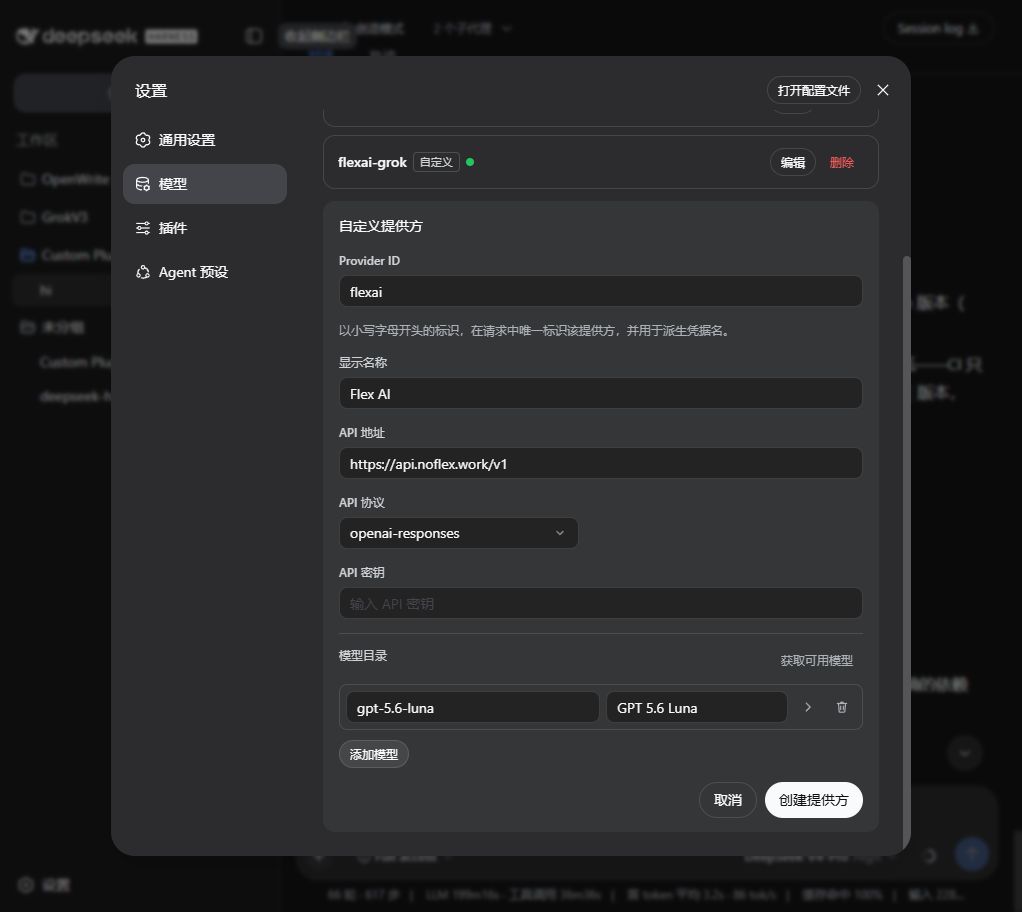
Use these values:
| DeepSeek Harness field | Value |
|---|---|
| Provider ID | flexai |
| Display name | Flex AI |
| API URL | https://api.noflex.work/v1 |
| API protocol | openai-responses |
| API key | Your dedicated Flex247 key |
| Model catalog | Click Add Model and enter an exact model ID from Model Square |
The model ID must exactly match Model Square. For example, start with gpt-5.6-luna and use GPT 5.6 Luna as its display name.
Keep the URL and protocol separate
Set the API URL only through /v1. Do not append /responses or duplicate the suffix as /v1/v1. The openai-responses selection controls the request protocol.
Treat the Provider ID as permanent
The Provider ID is referenced by requests, sessions, model defaults and credentials. To change it, create a new provider and remove the old one. The display name, URL, protocol, key and models remain editable.
Currently known incompatible models
Based on current compatibility testing, do not use grok-4.5-free or grok-4.6-free in DeepSeek Harness. Because their architecture is incompatible with the harness, these models trigger an infinite loop. This is not an official DeepSeek Harness compatibility statement.
If either model is selected accidentally, stop the current task immediately, switch to a compatible model and test again in a new session.
5. Create the provider and test
- Add at least one model, then click Create Provider.
- Return to the session view and click Select Model below the prompt box.
- Select Flex AI and the model you added.
- Start a new session and send a short, read-only test request.
- Confirm the successful request and expected model ID in Flex247 Usage Logs.
Provider and model routing changes take effect on the next request; DeepSeek Harness does not need to be restarted.
After entering the URL and key, you can also click Get Available Models before saving. If the upstream does not expose a compatible GET /models endpoint, add the exact model ID manually.
Troubleshooting
Get Available Models returns 401
Verify that the API key is complete and active, with available quota and permission for the target model.
404 or Responses error
- The API URL must be
https://api.noflex.work/v1. - Select
openai-responsesas the API protocol. - Do not append
/responsesto the API URL.
The model is missing from the selector
Edit the Flex AI provider and confirm that the model catalog contains at least one exact model ID. Use Add Model when automatic discovery is unavailable.
The session repeats indefinitely
Stop the task immediately, confirm that neither grok-4.5-free nor grok-4.6-free is selected, and start a new session with a compatible model.